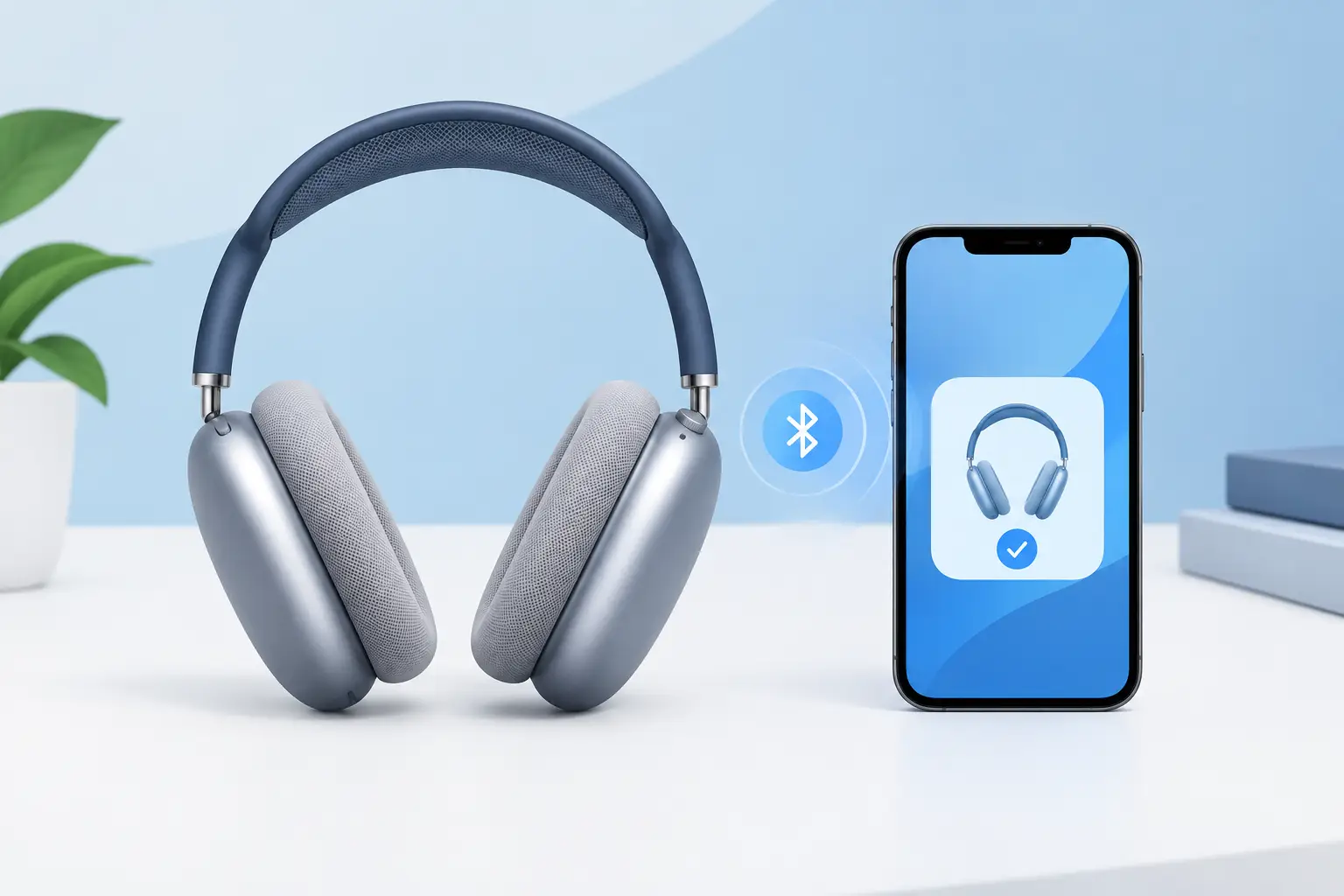
Searching “pair AirPods Max iPhone” usually means you want one thing: your headphones connected quickly, without scrolling through Bluetooth settings or guessing which button to press. When your AirPods Max are working as they should, pairing takes seconds. Place them near an unlocked iPhone and Apple’s setup card should appear on screen.
That simple experience is part of what makes AirPods Max worth owning. You get premium sound, active noise cancellation and easy switching across Apple devices. If the connection does not appear, though, it is usually a setting, charge level or pairing-state issue that can be fixed at home.
How to pair AirPods Max with an iPhone
Start by making sure your iPhone is unlocked and Bluetooth is switched on. You can check this in Settings > Bluetooth. Then take your AirPods Max out of the Smart Case and hold them beside the iPhone.
A setup animation should appear automatically. Tap Connect, follow any on-screen prompts and wait for the confirmation. Your AirPods Max will then be linked to your Apple Account, meaning they can also be available to other compatible Apple devices signed in to the same account.
There is no need to search manually for your headphones if the setup card appears. Once connected, put them on and play audio to confirm both ear cups are working correctly. You can adjust noise control and Spatial Audio from Control Centre, or see more settings in Settings > Bluetooth by tapping the information icon beside AirPods Max.
If the setup card does not appear
The automatic prompt is convenient, but it is not the only way to connect. Hold down the noise control button on the top of the right ear cup until the status light flashes white. This puts AirPods Max into pairing mode.
On your iPhone, open Settings > Bluetooth and look under Other Devices. Tap your AirPods Max when they appear. After they connect, the headphones should show under My Devices for future use.
If you cannot see them at all, give the headphones a short charge before trying again. A very low battery can prevent normal pairing, even if the headphones appeared to have power recently. Leave them in the Smart Case with a suitable charging cable connected for at least 15 minutes, then repeat the process.
Pair AirPods Max to iPhone after changing phones
Moving to a new iPhone is normally straightforward if you use the same Apple Account. Once the new handset is signed in and Bluetooth is enabled, hold the AirPods Max nearby and connect them from the on-screen prompt or Bluetooth menu.
Sometimes the old iPhone still tries to take the connection first, particularly if it is nearby and active. Turn Bluetooth off on the old phone temporarily, or move it out of range while you pair the headphones to the new one. This removes a common source of confusion without deleting any settings unnecessarily.
If your AirPods Max are listed on the new iPhone but refuse to connect, tap the information icon next to their name and choose Forget This Device. Then put the headphones back into pairing mode with the noise control button and connect them again. Forgetting the device is useful when the saved connection is corrupted, but it should not be your first step if the headphones are connecting intermittently.
Why AirPods Max will not connect
Bluetooth problems are not always caused by a fault in the headphones. In many cases, the issue is temporary and is resolved by charging, restarting or re-pairing. Before assuming your AirPods Max need repair, check the basics carefully.
Make sure iPhone Bluetooth is on and Airplane Mode is off. Restart the iPhone if the Bluetooth menu is frozen or not displaying nearby devices. Then charge the AirPods Max, remove them from the Smart Case and try the white-light pairing process again.
It is also worth checking whether the headphones are connected to another nearby Apple device. AirPods Max are designed to switch between devices, but this can occasionally look like a failed iPhone connection when the audio has simply moved to an iPad or Mac. Select AirPods Max from the audio output controls on the device you want to use.
When to reset AirPods Max
A reset is sensible when pairing repeatedly fails, the status light behaves unexpectedly or audio controls stop responding. It clears the current connection state and gives the headphones a fresh start.
First, charge your AirPods Max for a few minutes. Then press and hold both the noise control button and the Digital Crown together. Keep holding until the status light flashes amber, then continue holding until it flashes white. Your AirPods Max are now reset and ready to pair again.
After a reset, place them beside your unlocked iPhone. Use the setup card if it appears, or connect manually through Settings > Bluetooth. Do not release the buttons as soon as you see amber if you want a full reset - the white flash is the sign that the reset has completed.
Connection issues that may need specialist repair
If AirPods Max still will not pair after charging, resetting and testing with another iPhone, the cause may be more than a saved Bluetooth setting. Battery wear, charging faults, internal connectivity issues and audio hardware problems can all affect how reliably the headphones wake, pair and stay connected.
Pay attention to the pattern. Headphones that only connect while charging, repeatedly disconnect during a commute, fail to show a status light or play sound through one side may need a proper diagnosis. The same applies if the Digital Crown or noise control button no longer responds consistently.
Repeated resets can be frustrating, and they do not repair a failing battery or internal component. For an expensive set of headphones, repair can be the better-value option compared with replacement, especially when the rest of the condition is good.
MaxFix provides specialist AirPods Max repair with a free diagnosis, fast turnaround and a No Fix No Fee commitment. If a connection problem turns out to be hardware-related, a focused repair service can identify the fault rather than treating every Bluetooth issue as the same problem.
A few checks for a reliable daily connection
Once your AirPods Max are paired, a little routine care helps avoid avoidable connection problems. Keep the charging port clean and dry, charge the headphones before long journeys and install iPhone software updates when available. If you regularly move between several Apple devices, check the active audio output when sound seems to disappear.
Avoid storing the headphones loose in a bag where buttons can be pressed accidentally or where moisture can build up around the ear cushions. The Smart Case helps preserve battery life and gives your AirPods Max a safer place between uses.
Most pairing issues take less than a minute to resolve. But if your AirPods Max are no longer behaving like premium headphones should, getting a clear diagnosis is a better next step than living with unreliable sound.